Support
Auto-tracking
What auto-tracking does
Forgetting to start the timer, or to stop it, is what makes most timesheets wrong. Auto-tracking does it for you. You give a task a few rules, and Horario starts its timer when one of them applies and pauses it when none do.
Set up rules for each task and you won't have to remember to press start or pause.
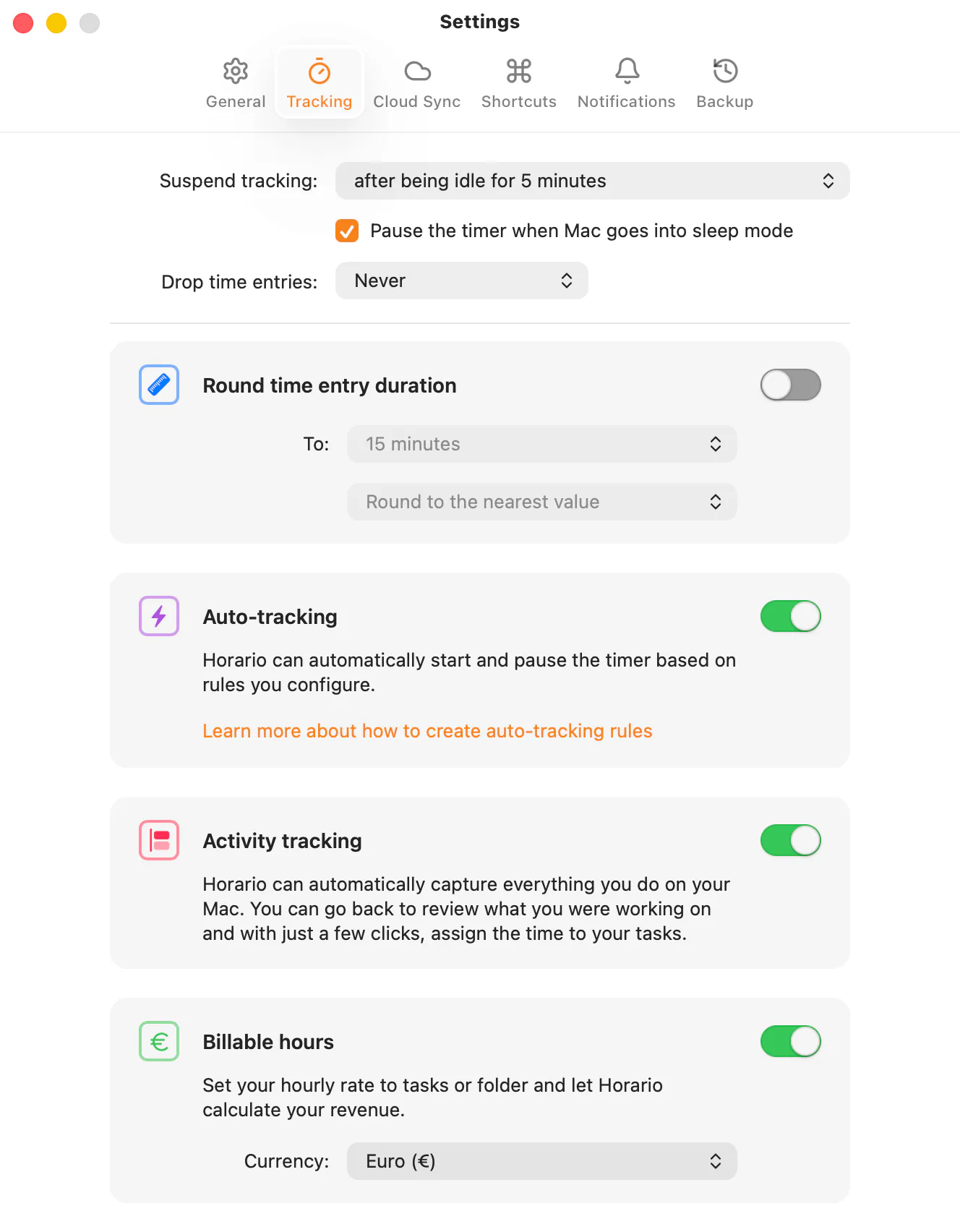
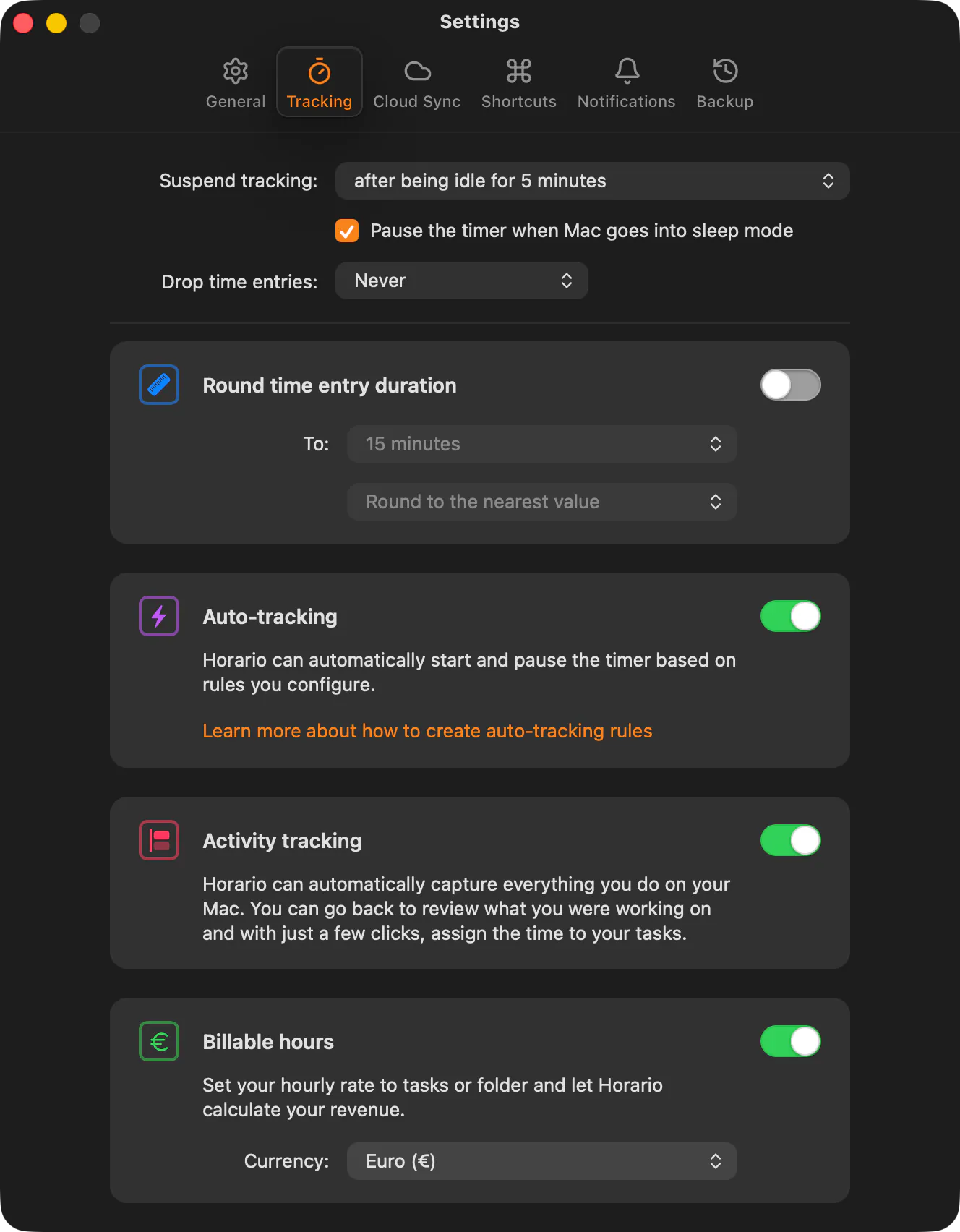
Turn it on
- Auto-tracking needs the Accessibility permission. Horario asks for it when
you first turn auto-tracking on, during setup or in Settings → Tracking.
- Open System Settings → Privacy & Security → Accessibility.
- Turn on the switch next to Horario. macOS asks for your password or Touch ID. If the switch is already on, select Horario, click −, then click Open System Settings in Horario again.
- Go back to Horario. A confirmation shows that auto-tracking is on.
- To match website addresses, macOS also asks once for each browser. Allow it, or turn it on later in System Settings → Privacy & Security → Automation.
Create a rule
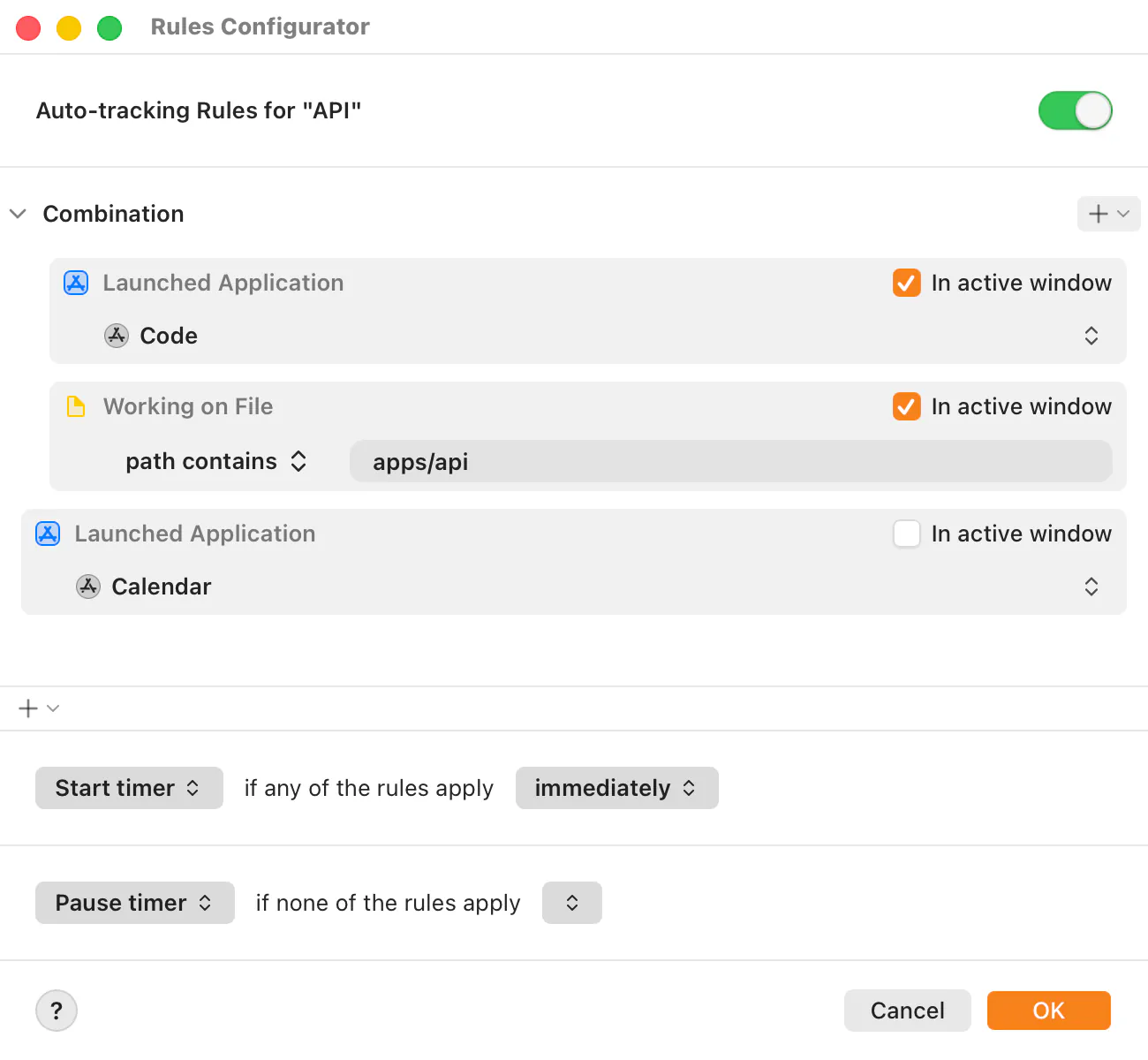
- Select the task and choose Tracking → Edit Rules… in the menu bar. Or right-click an activity on the timeline and choose Create Auto-tracking Rule…: Horario fills in a rule from that activity, and you pick the task.
- Click + below the rules and pick a rule type. Or drag a file, a folder or an app into the rules window.
- Fill in what the rule should match.
- Click OK. Open what the rule matches and the timer starts.
Rule types
- App
- Launched Application. Starts the timer while the app is open.
- File
- Working on File. Starts the timer when you work on that file, in apps that report the open document.
- Folder
- Working on File in Folder. The same, for any file inside the folder.
- Window title
- Window Title. Starts the timer when a window's title is, contains, starts with or ends with the text you give it.
- Website
- Website URL. Starts the timer when the address matches, in Safari, Chrome, Edge, Brave, Arc and Vivaldi.
- Slack
- Slack. Starts the timer while Slack is open, or only in the workspace or channel you name.
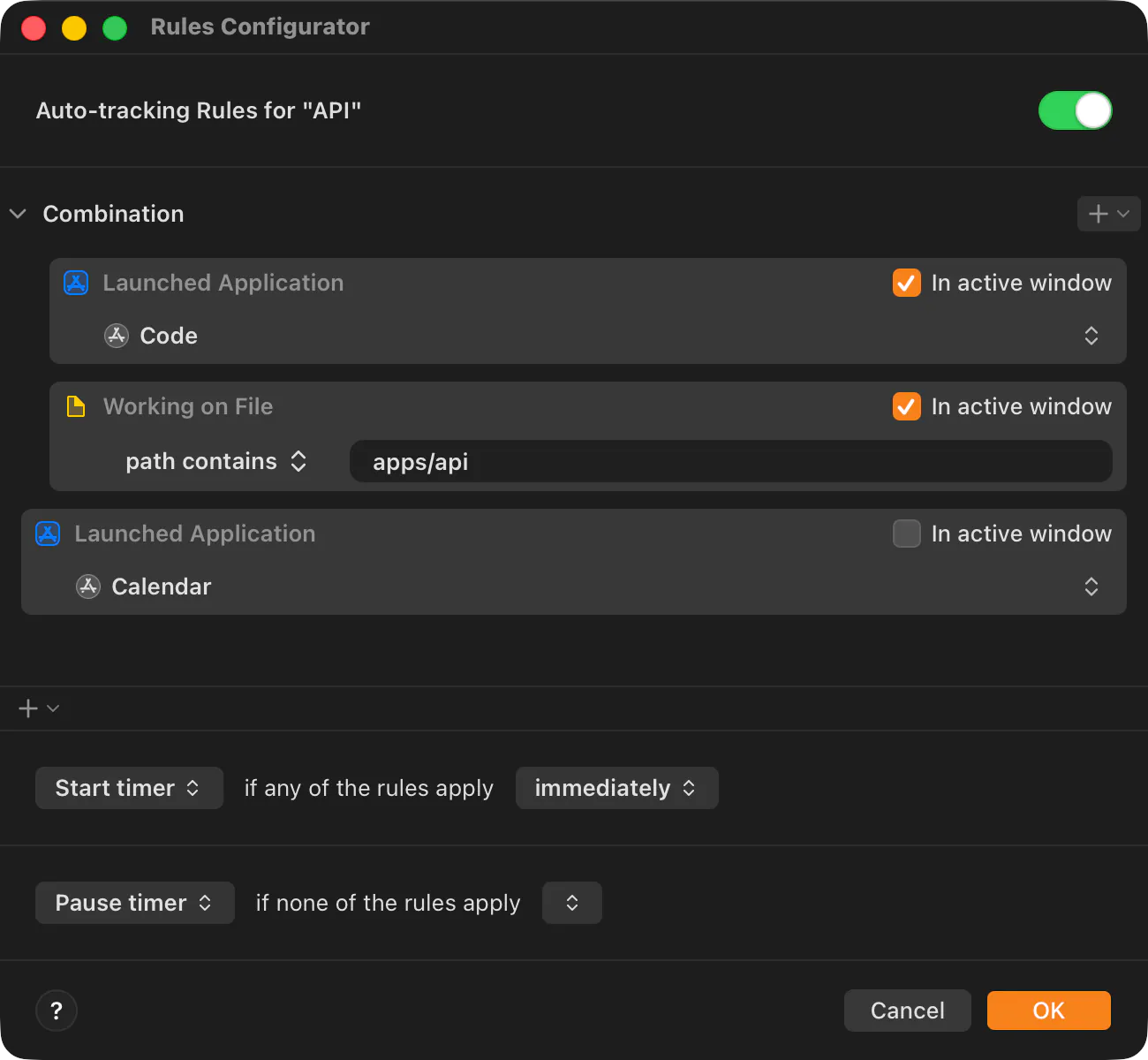
Every rule has an In active window box. Tick it and the rule only counts the app or window you're working in.
A file rule matches on path is, name contains, path contains, name matches regex or path matches regex. A folder rule matches any file inside the folder you choose.
Combinations
Choose Combination from the + menu and put rules inside it. Horario starts the timer only when all of them apply at once.
What happens when a rule applies
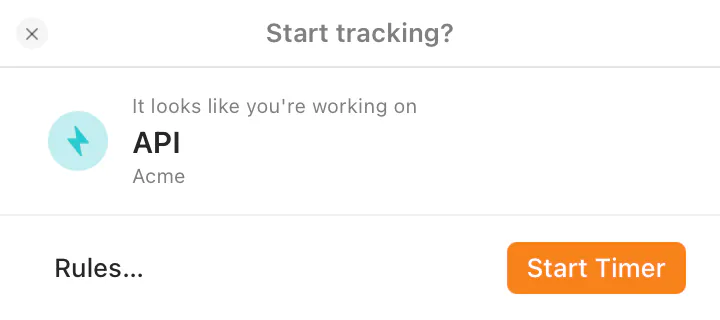
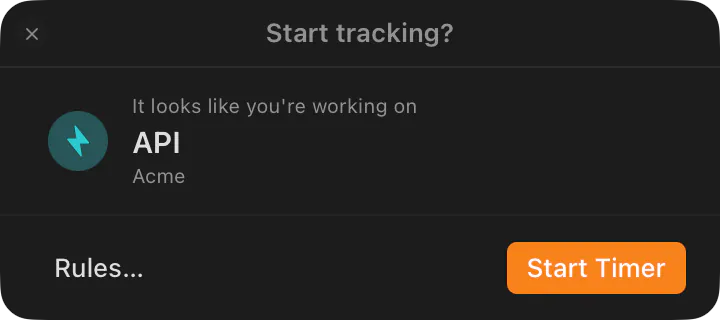
Below the rules, choose Start timer or Notify me for when any rule applies, and Pause timer, Notify me or Don't pause timer for when none do. With Notify me, Horario asks “Start tracking?” or “Pause tracking?” instead of acting on its own.
Next to each, choose how long Horario waits: from immediately up to for 5 minutes before it starts the timer, and from for 10 seconds up to for 5 minutes before it pauses. A short wait keeps a quick glance from counting.
Pausing it for a while
If you pause an auto-tracked timer from the menu bar icon, Horario stops auto-tracking that task and marks it Off. To turn it back on, click the Off badge next to the task, or start the task yourself.
If a rule never matches
A file or folder rule needs an app that reports the open document. If yours doesn't, match part of the window title instead. A website rule only works in the browsers listed above, and each browser needs the Automation permission.
Turn it off
- For one task: turn off the switch at the top of its rules window.
- For every task: turn off Auto-tracking in Settings → Tracking.